1. What´s new in Swift
2. Bring Swift Charts to the third dimension
3. What’s new in SF Symbols 7
4. What’s new in Xcode 26
5. Meet the Foundation Models framework
6. Explore new advances in App Intents
7. What’s new in SwiftUI
8. Accessibility nutrition labels
9. Create icons with Icon Composer
10. Conclusion
The Apple Worldwide Developer Conference 2025 came packed with numerous new features, and the iOS team has analyzed the most interesting ones for our projects and development work.
1. What´s new in Swift
With the goal of increasing Swift developers’ productivity, improvements have been made to code writing, compiling, and debugging phases. Swift Build has been made open source to unify the build systems between Xcode and Swift Package Manager.
In Swiftlang, we now have the Swift extension for VS Code, featuring a new project panel, DocC review tools, background indexing enabled by default, and automatic inclusion of LLDB support upon installation of the extension to simplify debugging.
Swift 6.2 brings improvements for debugging asynchronous code. LLDB now continues execution inside asynchronous functions—even when it needs to switch between threads—and shows exactly which task is being executed. Additionally, the debugger reuses compilation modules, significantly speeding up command evaluation.
Among the new libraries included in Foundation is the Subprocess package, designed to facilitate the use of Swift for scripting tasks. There are also highly useful enhancements to the observer pattern, such as automatically tracking state changes within an object’s graph.
Swift Testing now supports custom attachments, which help with test failure triaging, and exit tests for verifying code that is expected to terminate under specific conditions.
Active development continues on Swift’s interoperability with C, Objective-C, and C++, as well as with Java, with the open-source Swift-Java project evolving rapidly.
Finally, beyond performance and memory usage improvements, Swift has made it easier to implement concurrency for parallel code execution. By default, code runs on a single thread, and developers explicitly decide when to introduce concurrency. This ensures that default code is free from data races and simplifies the integration of concurrency into projects.
Swift 6.2 also includes migration tools that automatically apply necessary code changes.
Official video: https://developer.apple.com/videos/play/wwdc2025/245
Presented by: Verónica Cordobés
2. Bring Swift Charts to the third dimension
With iOS 26, the charts introduced in the previous version have been updated, now incorporating native support for three-dimensional charts through the new Chart3D component. This feature enables more expressive and visual representation of datasets with three dimensions, making it easier to explore and understand complex relationships between variables.
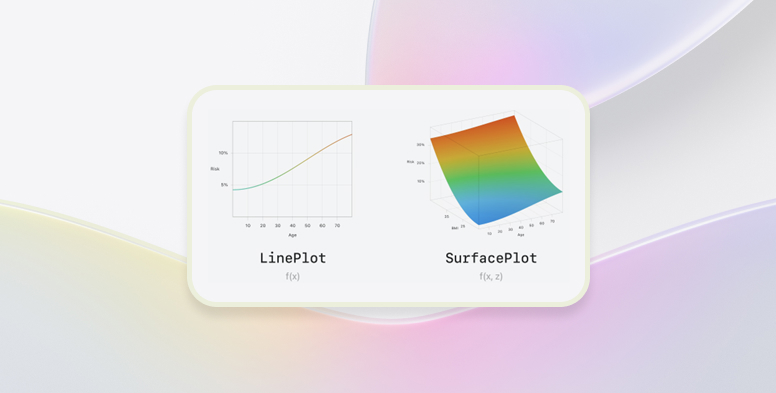
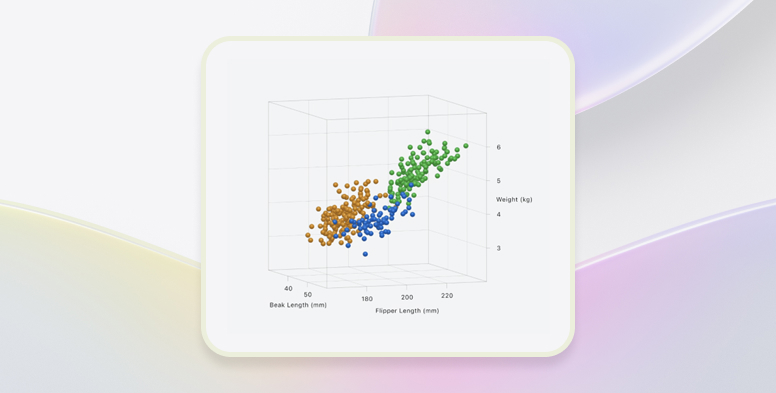
Chart3D extends the capabilities of traditional 2D charts, such as scatter plots, by adding a Z-axis to position data points in space. In addition to PointMark, other marks like RuleMark and RectangleMark have also been adapted for 3D. A new component called SurfacePlot has been introduced, ideal for displaying mathematical surfaces or dynamically generated continuous models.
3D charts support direct interaction via gestures, such as rotation and perspective changes, and are fully customizable. The initial pose of the chart can be defined using Chart3DPose, with parameters like tilt and viewing angle. It’s also possible to change the camera projection, choosing between an orthographic view (more technical and uniform) or a perspective view (more immersive and realistic).
The visual appearance can be enhanced by applying styles based on height or surface angle (.heightBased, .normalBased), or through custom colors and gradients. These options allow charts to convey information not only through the position of data points but also via color and shape.
3D visualization is particularly useful when the analysis focuses on the overall shape of the data, rather than specific values. It’s ideal for datasets where all three dimensions represent meaningful magnitudes and where interaction enhances interpretation.
Official video: https://developer.apple.com/videos/play/wwdc2025/313/
Presented by: David Tejedor
3. What´s new in SF Symbols 7
In this session, Apple introduces the most important updates in SF Symbols 7, the latest version of its vector icon system for apps on iOS, macOS, iPadOS, and watchOS. The main focus is to give symbols greater visual expressiveness and dynamism through new animations, transitions, and graphical enhancements.
One of the standout features is the introduction of the Draw effect, which animates the stroke of icons as if they’re being drawn in real time. This effect has two modes:
- Draw On, which shows the icon being gradually revealed
- Draw Off, which animates its disappearance
This adds a visually engaging layer to user interfaces.
Additionally, this version introduces a Variable Draw mode, which allows partial drawing of a symbol’s stroke to indicate progress or an intermediate state—similar to how variable colors work. This unlocks new possibilities for native animated visual indicators.
Another key enhancement is the evolution of the Magic Replace system. It now performs much smoother transitions between related symbols, preserving shared elements and only changing the differing parts. It’s also fully compatible with Draw animations, making it easier to create elegant and seamless icon transitions.
SF Symbols 7 also adds support for automatic gradients applied to symbols. These are generated from the base color to add more depth and realism, especially noticeable at larger sizes. This gives previously flat icons a sense of lighting and volume.
Finally, the SF Symbols app has been updated to allow developers to create their own custom symbols, with annotations for stroke, layers, animations, and gradients. The new APIs simplify the integration of these animations and effects into apps, enabling much richer and more modern interfaces—without the need for external images or manually crafted animations.
SF Symbols 7 represents a powerful visual evolution, helping designers and developers build more attractive, expressive, and dynamic interfaces, elevating the user experience across Apple devices.
Official video: https://developer.apple.com/videos/play/wwdc2025/337
Presented by: Javier García
4. What´s new in Xcode 26
Xcode 26 has arrived with major improvements that are noticeable from the moment you open it. It’s now lighter, which means not only does it download faster, but large projects also open almost instantly—up to 40% faster.
The editor interface has been redesigned as well. Tabs finally work as expected, you can pin important files to keep them accessible at all times, and navigate easily between them using a kind of home menu. The search functionality has taken a huge leap forward—you can now search for multiple words even if they’re separated in the code, making it much easier to find what you’re looking for in complex or unfamiliar projects.
But the real star of this version is the integration of artificial intelligence. You can now interact with models like ChatGPT directly from the editor, asking for help with debugging, implementing new features, or even modifying multiple files at once. The best part is that it understands the project’s context without needing constant explanations—similar to what editors like Cursor or Windsurf already offer.
There’s also a new feature called #Playground that lets you experiment with code in real time—perfect for testing ideas quickly or understanding exactly what a function or structure does. Additionally, the new Icon Composer tool built into Xcode makes it easier to create advanced icons with shadows, transparency, and complex effects, all in a single file.
Another highlight is localization. Text catalogs now automatically generate Swift symbols for autocomplete, along with comments that give translators exact context—making translations more accurate and developer-friendly.
Finally, UI testing is now simpler and more efficient. You can record a test by interacting directly with your app, and Xcode will generate the corresponding code automatically—including video recordings so you can quickly identify where a failure occurs.
With all these new features, Xcode 26 is faster, more intuitive, and more complete than ever, making app development for Apple platforms more comfortable and efficient.
Official video: https://developer.apple.com/videos/play/wwdc2025/247
Presented by: Daniel Plata
5. Meet the Foundation Models framework
At WWDC 2025, Apple introduced the Foundation Models Framework, a new Swift API that allows developers to use Apple’s own large language models directly on-device, without requiring an internet connection and while preserving user privacy. It’s available on iOS, iPadOS, macOS, and visionOS, and doesn’t increase app size since it’s built into the operating system.
One of its key features is Guided Generation, which enables structured Swift objects to be generated from the model’s output using the @Generable and @Guide macros. This ensures reliable results that are easy to integrate into your UI.
The framework also supports streaming responses via “snapshots,” ideal for reactive interfaces like SwiftUI. It includes tool calling, allowing the model to autonomously execute functions defined within your app.
Additionally, it supports stateful sessions to maintain context across interactions and offers specialized adapters—such as a content labeling adapter for tasks like topic or emotion detection.
For developers, the framework comes with new tools like #Playground in Xcode, integration with Instruments to profile latency, and options for training custom adapters for advanced use cases.
In summary, it’s a powerful, private, and native solution to bring generative intelligence to apps across the Apple ecosystem.
Official video: https://developer.apple.com/videos/play/wwdc2025/286/
Presented by: Jon González
6. Explore new advances in App Items
The new enhancements to App Intents allow your app to perform more actions and integrate more deeply across the Apple ecosystem—including Shortcuts, Spotlight, and Visual Intelligence.
Key improvements include:
🔹 Interactive Quick Windows (Snippets)
Your app can now display small pop-up windows with information—and interactive buttons or controls—so users can take action without fully opening the app. For example, they can instantly mark an item as a favorite.
🔹 Deeper System Integration
- Image Search: Your app can return results when users search directly from a photo or screenshot.
- On-Screen Content Understanding: Siri or ChatGPT can understand what your app is showing on screen and answer questions about it.
- Smarter Spotlight Search: Your app and its content will appear more intelligently and more relevantly in system-wide search results.
🔹 Better User Experience
- Undo Actions: Users can now easily undo actions performed through your app—even if they were triggered via Shortcuts or Siri.
- Multiple Choices: Instead of just “yes” or “no,” your app can now present multiple response options to the user.
- Smart App Launching: Your app can decide whether to open fully or respond quickly—for example, with voice only if the user is driving.
🔹 Easier Development
New tools make it simpler for developers to create these integrations, refactor code, and handle data more efficiently.
Official video: https://developer.apple.com/videos/play/wwdc2025/275/
Presented by: Pablo Gil
7. What´s new in SwiftUI
During the annual WWDC 2025 conference, Apple unveiled a series of significant updates to SwiftUI, its declarative framework for building user interfaces across all its platforms.
One of the most notable changes was the introduction of a new visual style called Liquid Glass, which redefines app aesthetics through the use of transparencies, blurs, and dynamic visual layers. To complement this design, new tools were introduced, such as ToolbarSpacer, which allows for more precise distribution of elements within the toolbar, as well as new modifiers that provide additional customization options for button and title styling inside the toolbar. The toolbar’s functionality was also enhanced with the ability to pin section headers while scrolling through long lists.
In line with ergonomic and accessibility considerations, the SearchBar has been relocated to the bottom of the screen. Another major advancement in the visual realm is the new glassEffect modifier, which lets developers apply the Liquid Glass style to various interface views.
In terms of performance, SwiftUI has seen substantial improvements—especially in handling lists and horizontal stacks. Lists are now significantly more efficient when rendering large numbers of elements, improving the user experience in data-heavy apps. LazyHStack now behaves similarly to LazyVStack, loading only visible elements and thereby optimizing memory usage.
Apple also introduced the @animatable macro, which greatly simplifies the creation of animations, such as loading indicators—reducing boilerplate code and increasing expressiveness.
As for components, a new native WebView has been added, enabling web content embedding directly in SwiftUI—without relying on UIKit wrappers. The TextEditor component has also been significantly enhanced, offering a richer and more precise text-editing experience within apps.
Lastly, Apple has strengthened the developer tools available in Xcode. New debugging and previewing capabilitiesallow for a smoother and more accurate UI development workflow. Additionally, improved interoperability with UIKit and AppKit ensures a more seamless transition between technologies and simplifies the integration of advanced functionality.
In conclusion, the updates announced at WWDC 2025 position SwiftUI as a more mature, efficient, and versatile tool. Thanks to these improvements, developers can build faster, more accessible, and scalable applications, with less code and greater control over design, navigation, and state management.
Official video: https://developer.apple.com/videos/play/wwdc2025/256/
Presentada por: Alberto Fernández-Baíllo
8. Accessibility nutrition labels
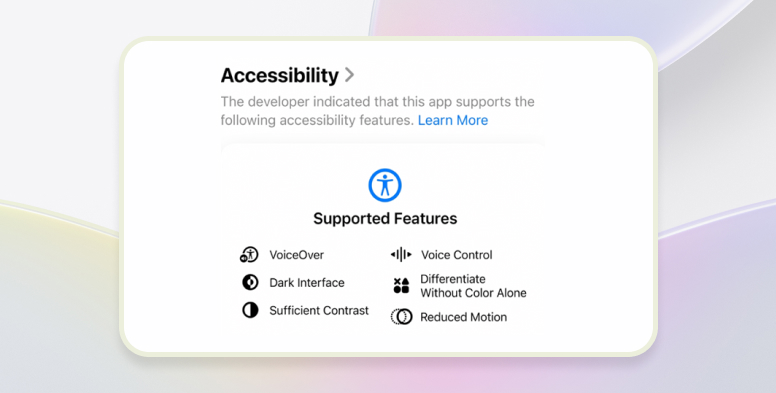
In the App Store, we can now select which of the system’s accessibility settings our app supports.
This helps users identify whether an app is accessible.
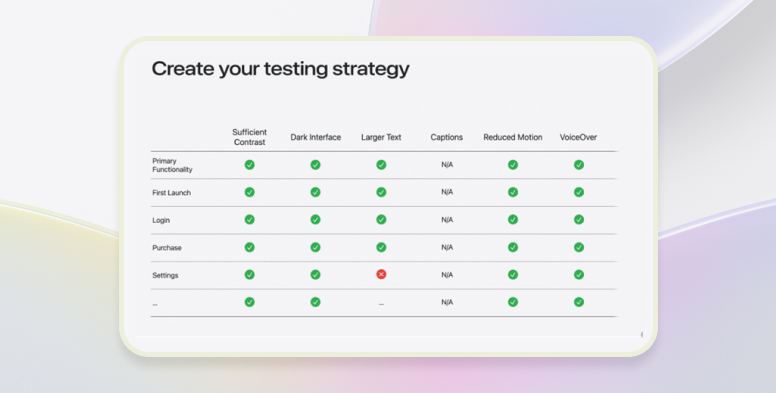
We must evaluate common tasks:
- Core functionality
- First launch
- Login
- Purchases
- Settings
Each accessibility setting should be tested on every device the app runs on (iPhone, iPad, Mac, Apple Watch).
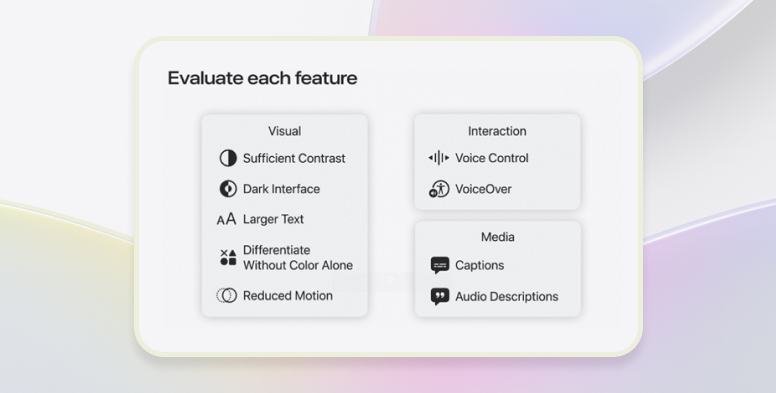
Accessibility Settings
Strategy for Testing
AppStore Information
Accessible Design: Key Considerations
To create an accessible app, we should focus on:
- Designing for everyone
- Learning accessibility tools and options in depth
- Connecting with the disability community to understand their needs
Accessibility Features
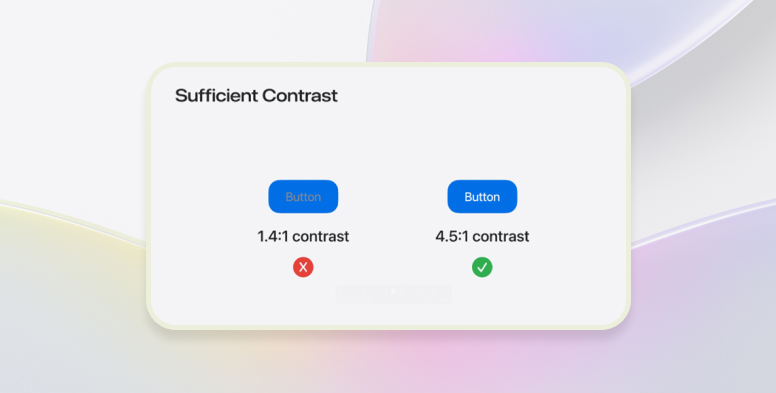
Sufficient Contrast
If colors lack sufficient contrast, test the app in High Contrast Mode.
This should be verified in both Light Mode and Dark Mode.
Dark Mode
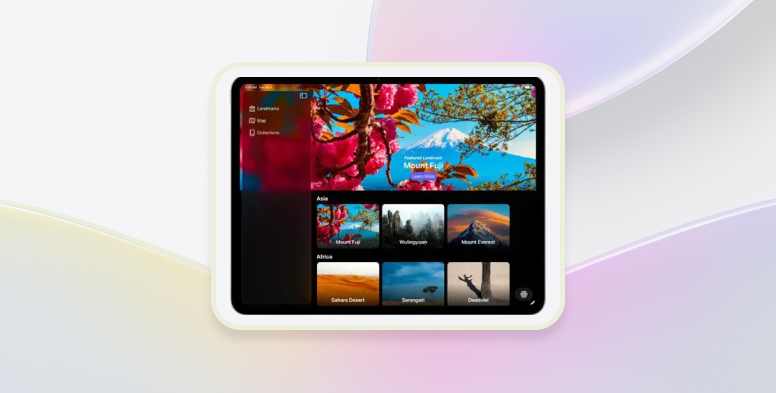
Dark Mode helps users who prefer it, and especially those with photosensitivity. Your app should offer full support for this mode.
Larger Text
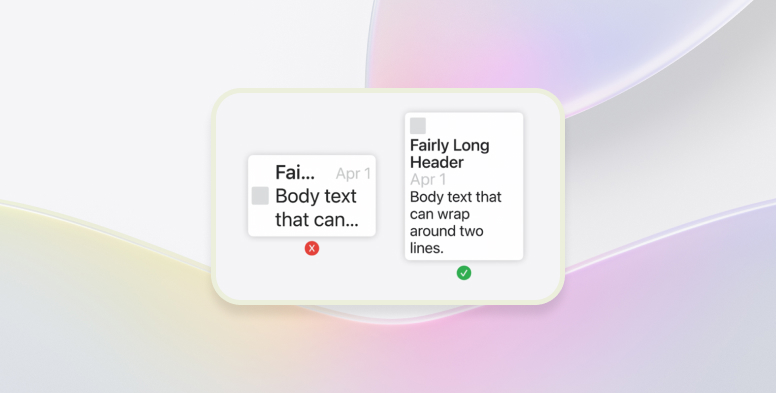
Apps should be designed with dynamic components that scale with the user’s text size preferences.
Use Dynamic Type (e.g., San Francisco) to ensure automatic scaling.
Enable multiline text so content isn’t truncated.
For TextFields, allow them to grow or at least enable internal scrolling.
Color Shouldn’t Be the Only Indicator
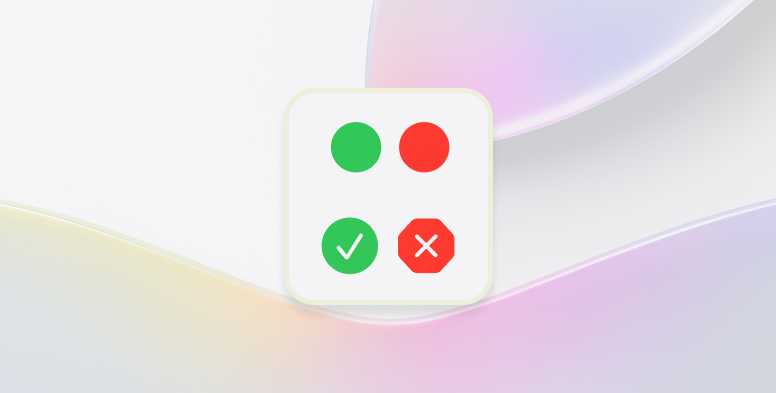
Using only color to indicate states (like success/failure) is not accessible for users with color blindness.
Pair colors with icons or text labels so the information is also conveyed visually and semantically.
Reduce Motion Setting
When Reduce Motion is enabled, avoid:
- Zooming or sliding transitions
- Flashing or blinking effects
- Animations that start automatically
- Parallax effects
You should replace or redesign problematic animations to ensure a comfortable experience.
Voice Control
Voice Control allows users to perform gestures like swiping, press buttons, or type by voice.
Use accessibilityLabel to define the spoken command users will use to interact with the element.
VoiceOver
VoiceOver uses the same API as Voice Control but provides screen reading for users who rely on auditory interaction.
- Navigation is done via gestures, not visual interaction.
- Swiping left to right or top to bottom moves through interface elements sequentially.
- VoiceOver should describe: the element’s name, type, and available actions.
Captions
Provide text descriptions for multimedia content to support users who are deaf or hard of hearing.
Audio Descriptions
Add spoken descriptions of visual elements in video content to support users who are blind or have low vision.
Official video: https://developer.apple.com/videos/play/wwdc2025/224/
Presented by: Silvia Casanova Martínez
9. Create icons with Icon Composer
At WWDC 2025, Apple introduced a powerful new tool called Icon Composer, available starting with Xcode 16, which redefines how developers design and implement app icons across the entire Apple ecosystem—iOS, iPadOS, macOS, watchOS, and visionOS.
Icon Composer enables the creation of visually consistent, accessible, and adaptable icons in a much more intuitive and streamlined way, eliminating the need to manually generate multiple asset variants.
Key features include:
- Flexible Importing: You can import files from design tools like Sketch, Figma, or Photoshop, as well as standard image formats like PNG and PSD.
- Real-Time Visual Interface: Allows you to build icons from layers, make direct visual adjustments, and instantly preview results across various devices, sizes, and system modes (Light, Dark, High Contrast).
- Built-In Native Styles: Includes visual effects aligned with Apple’s latest design guidelines—such as the new Liquid Glass style in macOS Sequoia, and platform-specific styles for iOS and watchOS.
- Precise Visual Controls: Offers full control over shadows, reflections, depth, alignment, and opacity to ensure a clean and professional presentation.
- Contextual Previews: Lets you see how the icon will appear in different system locations like the Home Screen, Spotlight, Dock, or App Library, under various UI conditions.
The final icon is saved as a single .iconcomposer file, which can be dragged directly into the Xcode asset catalog. This file automatically includes all required sizes and variants, removing the need for manual PNG editing or Contents.json configuration.
Additionally, the file is version-control friendly and can be used alongside SwiftUI previews to validate icon designs in context.
In summary, Icon Composer is a powerful, native solution that unifies icon design and implementation across the Apple ecosystem—saving time, reducing errors, and ensuring visually consistent results aligned with system standards.
Official video: https://developer.apple.com/videos/play/wwdc2025/361/
Presented by: José Enrique Cuñat Gomez
10. Conclusion
WWDC 25 not only reaffirmed Apple’s commitment to innovation, but also marked the beginning of a new era where artificial intelligence, personalization, and cross-device integration take center stage.
Beyond the technical announcements, this edition made it clear that Apple aims to redefine how we interact with technology in our daily lives.
Only time will tell how much impact these announcements will have—but one thing is certain:
the future of the Apple ecosystem looks smarter, more connected, and more personal than ever before.